
Appearance
Snap Button
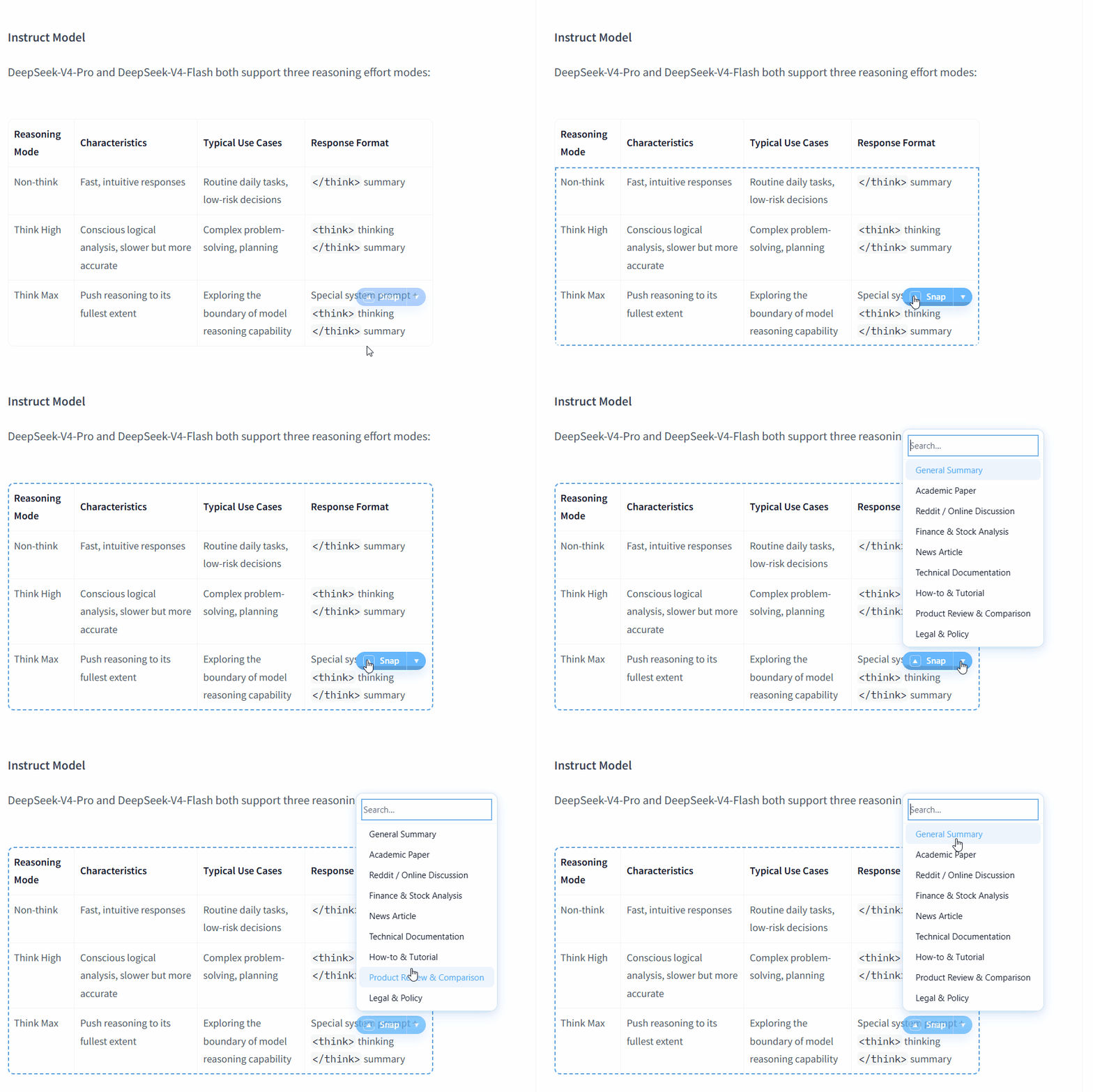
The Snap Button is the heart of the SnapPoint experience. It is a smart, floating interactive element that appears as you navigate the web, providing instant access to AI-powered insights.
How it Works
The Snap Button follows your cursor and subtly appears when you hover over meaningful content (like paragraphs, articles, or code blocks). It acts as a bridge between the webpage content and your AI agents.
Core Components
Snap (Center): Clicking the main part of the button (the "Snap" text or icon) immediately triggers the summarization of the currently highlighted block.
Expand (▲ Top Arrow): Clicking this expands the selection to the parent HTML element. This is useful when you want to summarize a whole section instead of just one paragraph.
Agent Picker (▼ Bottom Arrow): Opens a searchable list of available AI agents. You can switch from the default "Auto-summarizer" to a specific agent like "Forum Agent," "Paper Agent," or any custom agent you've created.
Power User Shortcuts
SnapPoint is designed for efficiency. Use these keyboard shortcuts to operate the Snap Button without reaching for your mouse:
| Key | Action |
|---|---|
| [ | Confirm/Highlight: On first press, highlights the currently identified block under the mouse. |
| [ | Expand: On second press, expands the selection to the parent container. |
| / | Agent Picker: Opens a searchable menu to force-select a specific sub-agent, matching the ▼ picker on the Snap Button. |
| Enter | Snap: Triggers the summarization (equivalent to clicking the "Snap" button). |
INFO
Shortcuts are active whenever the Snap Button is visible on the page.
Want the whole page?
To summarize an entire page without selecting text, use Snap Whole Page in the side panel — see Advanced Features.