
Appearance
Getting Started
Follow these three steps to get SnapPoint up and running in under a few minutes.
Step 1: Installation
SnapPoint is available for Chrome and Edge. Choose your store:
 Google Chrome
Visit the Chrome Web Store and click "Add to Chrome".
Add to Chrome →
 Microsoft Edge
Visit Edge Add-ons and click "Get" to install.
Get for Edge →
Step 2: Model Setup (REQUIRED)
SnapPoint is an AI-powered "shell"; you need to connect an AI "brain" before it can generate summaries.
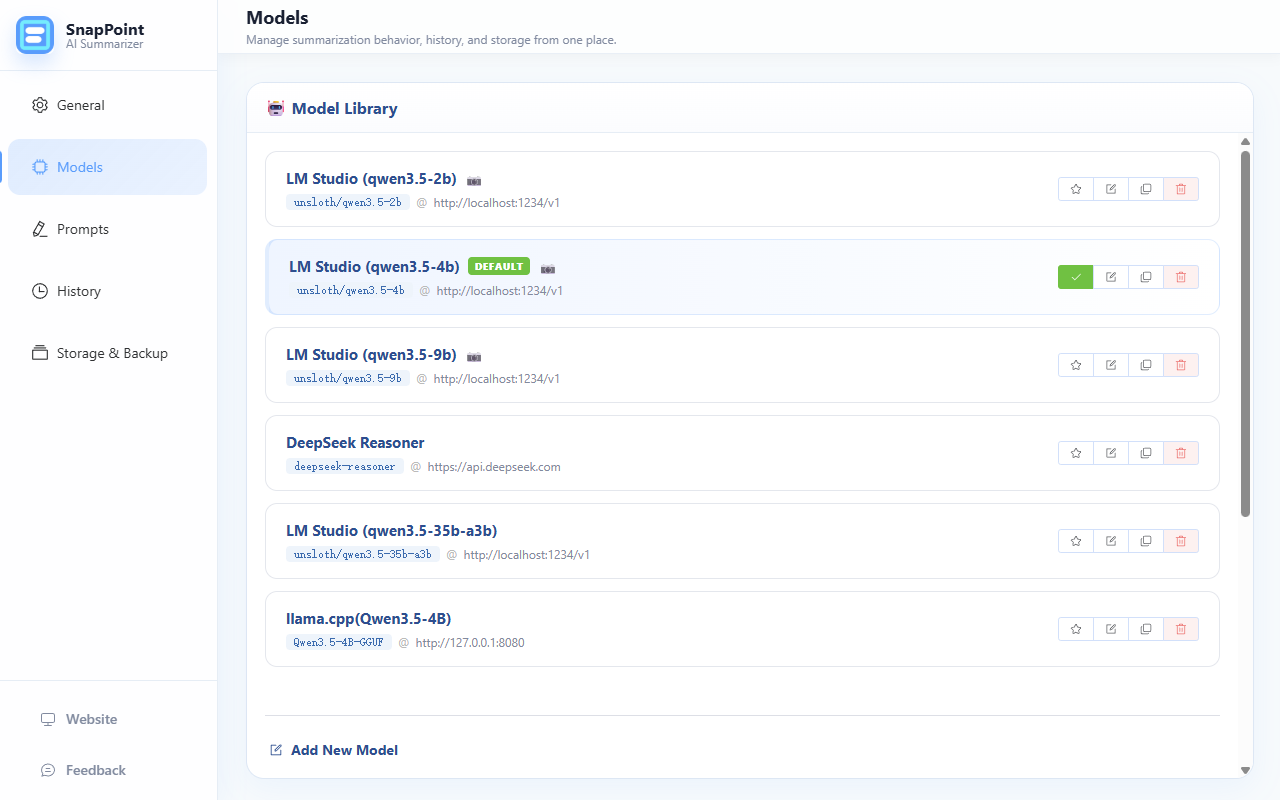
Local Models
- Runner Setup: Download and install a local LLM runner such as llama.cpp, or LM Studio or Ollama.
- Download Model: Choose a model (e.g., Qwen, Gemma) and download a version compatible with your hardware.
- Start Local Server: Ensure the runner's local API server is active.
- Connect: Open SnapPoint Settings → Model Settings:
- Base URL: Enter your runner's API endpoint (e.g.,
http://localhost:1234for LM Studio orhttp://localhost:11434for Ollama). - Model ID: Enter the exact id of the model you configured in your model server.
- Base URL: Enter your runner's API endpoint (e.g.,
TIP
Quick Setup: You can also use the Presets dropdown in Model Settings to automatically fill in the correct Base URL and configuration for providers like LM Studio, Ollama, vLLM, or cloud providers like DeepSeek and ZhipuAI.
API Providers
If you prefer a hosted model, enter your API key in Settings → Model Settings.
TIP
Quick Setup: Similar to local models, you can use the Presets dropdown to automatically configure endpoints and recommended model names for common providers like OpenAI (GPT-4o, o3-mini), Groq, or Kimi.
Action Required
The summarization feature will not work until a model is successfully configured and tested.
Step 3: Your First Summary (Quick Start)
Now that your model is connected, you're ready to summarize!
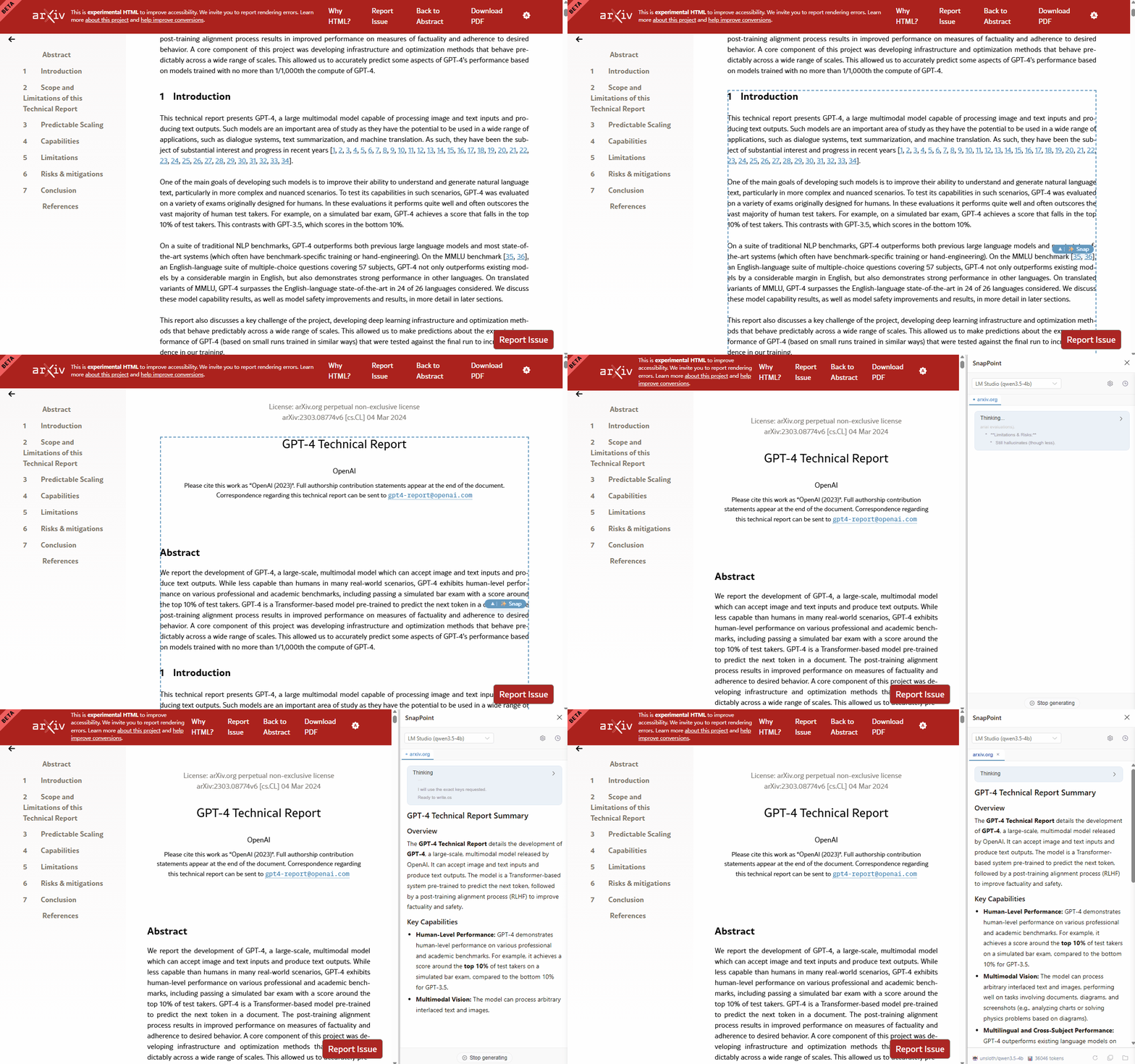
- Highlight text: Move your mouse over any content on a webpage.
- ✨ Snap it: Click the Snap Button that appears next to your hovered content.
- Read: The Side Panel will open and stream your summary in real-time.
INFO
You can also click the ▲ expand arrow on the Snap Button to widen the selection to the parent DOM block before summarizing, or use the ▼ agent picker to choose a specific sub-agent before you snap.